

Set up your studio
Install Vpipe or ComfyUI before connecting a generation runner. Install Ollama only if you want prompt enhancement. Frok wraps these separately installed services; it does not host or redistribute them or include model weights. Each runner and model has its own hardware and licensing requirements. Frok alone cannot generate media.
You are responsible for your inputs, generated content and how you use or share it, including required permissions and model licenses. Frok is provided “as is,” without warranty to the extent permitted by law. Read Legal & responsible use before getting started.
1. Start Frok
Download Frok from GitHub Releases, choose the installer for your system under Assets, then install and open it. For macOS first-launch permissions, see the installation notes. Startup creates ~/frok and installs the default pipeline definitions. On Windows, ~ means your user profile directory.
For the source build, install the Node.js version pinned in .node-version, open a terminal in the repository, and run:
npm ci
npm --prefix docs ci
npm run dev
Open http://127.0.0.1:3000. For the Electron development window instead, run npm --prefix docs ci once to install the offline documentation build tools, then npm run dev:desktop. UI edits refresh without rebuilding an installer. See desktop development for storage differences.
2. Connect a service
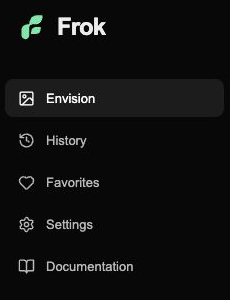
Use Settings to connect your tools. Documentation returns to these guides.
On first launch, Quick setup welcomes you with a short demonstration, then shows the same Services and Generation panels used in Settings. Connect your tools, choose optional workflows, and finish. Continuing never starts downloads; a built-in Vpipe starter runs only when you click Prepare models. You can skip setup and return through Settings → Services → Quick setup.
In Settings → Services, connect only the tools you want to use:
| Connection | Used for | Default when the input is empty |
|---|---|---|
| Vpipe | Native image and video workflows | Workspace ~/vpipe |
| ComfyUI | API image, video and video upscaling workflows | http://127.0.0.1:8000 and the suggested local folder |
| Ollama | Optional prompt enhancement | http://127.0.0.1:11434 |
Vpipe's workspace is the folder containing models, not models itself. ComfyUI and Ollama must already be running at the address you enter. Manual ComfyUI installations may use another port, such as 8188.
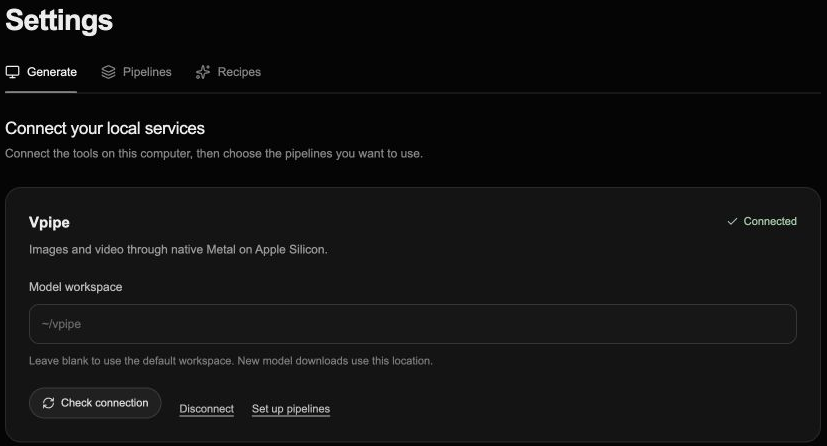
Example of a connected Vpipe installation. Enter your workspace here, then check the connection.
After a connection succeeds, move to Generation in the wizard or Settings to choose its workflows. Connecting a service alone does not select workflows or start model downloads. Connection details →
3. Choose a ready workflow
In Settings → Generation, choose a workflow for Images, Videos, Reference videos, or Video upscaling. The selectors list all compatible workflows from your workflow folder. A disabled option names the service it requires; connect that service in Services, then return to choose it. Quick setup and generation controls use the same choices.
Each selected workflow reports its readiness and links to setup instructions. A connected service lets you select its workflows even when their models still need downloading. Upscaling setup →
- Ready: the required model files and supported runner requirements were detected.
- Missing dependencies: use Prepare models when offered for a built-in Vpipe workflow, or follow the model setup guide. Preparation runs in Queue; you can finish the wizard while it continues.
- Needs attention: review the message; a path, node or metadata field may need fixing.
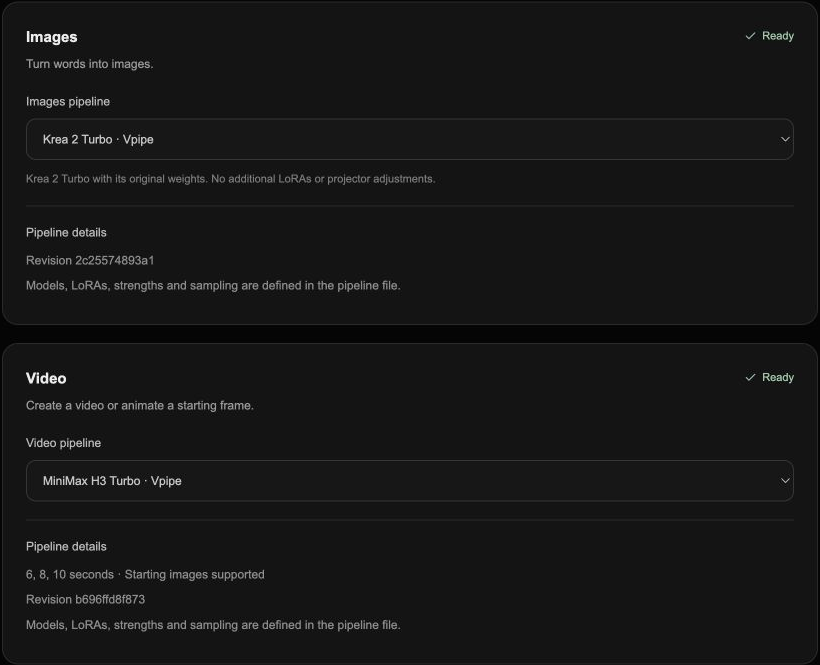
Readiness is separate for Images and Video. Your available pipelines may differ.
Models can require substantial disk space and memory. Start with one image pipeline, especially on a smaller machine. Preparation can be much slower than installing Frok itself. A successful file check does not guarantee that a model will fit your GPU memory.
4. Optionally enhance prompts
Connect Ollama in Services, then choose one of its installed text-generation models. Check Use Prompt Enhancement, or enable Prompt enhancement in generation settings; both controls share the same saved preference. Choosing an absent default model will not show Ready. There is no need for a second Ollama installation.
5. Make a first batch
Return to Create, choose Image, open generation settings and try four images. Enter a short, specific prompt and generate. Settings remember your choices. The queue and image placeholders show what is happening.
Continue with your first creation. If the generate button is disabled, follow the warning to the exact missing setup item; troubleshooting covers the common cases.