

Make your first creation
This walkthrough goes from a small image batch to one animated take. You need a ready image pipeline. A video pipeline is needed for the second half; Ollama is optional.
1. Start small
Open Create. Choose Image and 4:3, then open generation settings. Set the batch to 4, leave the seed automatic, and choose your ready image pipeline. Turn prompt enhancement off for this first comparison, or on if you already have a working Ollama connection.
Use this prompt:
A tiny red sailboat floats on a still mountain lake at sunrise. One white sail, soft reflections, distant pine-covered hills. A wide photograph with the boat slightly left of center.
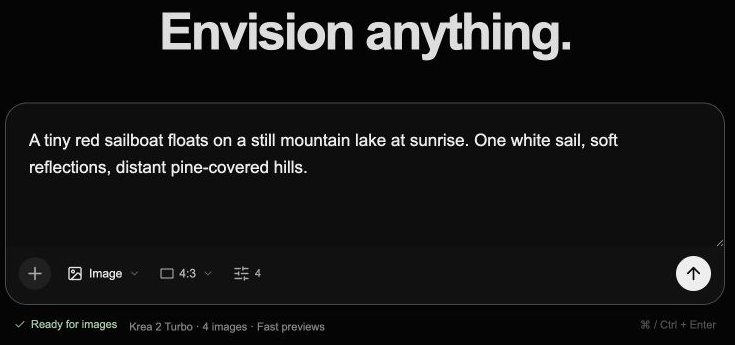
The lower row holds mode, aspect ratio and the sliders button for generation settings. The Generate button on the right starts generation.
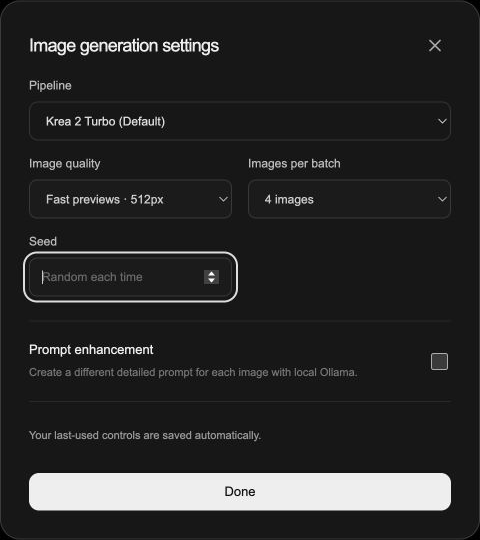
A small first batch: four images, fast previews and a random seed.
Generate. Four tiles appear; the active tile renders while the others wait. On compatible Vpipe workflows, intermediate previews appear as denoising advances.
2. Pick a frame
Open the image you like most. Expand Generation details and check the prompt, seed and dimensions. Favorite it with the heart. Close the details again to keep the viewer focused.
If none of the images works, return to Create and choose Generate more for another batch. A new batch explores fresh seeds without endless automatic generation.
3. Add a small motion
In the image viewer, open video settings. Use 6 seconds, 480p, and a ready video pipeline.
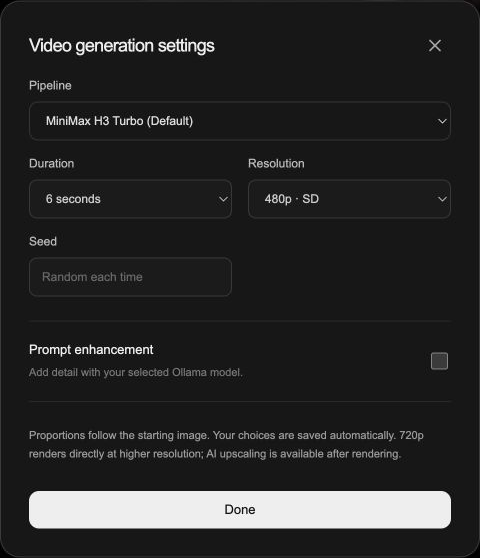
Open Video settings above the video prompt. Leave Seed blank for a fresh random seed on each render.
Enter this motion direction:
The sailboat drifts slowly from left to right. Gentle ripples spread behind it. Keep the camera steady and the distant mountains unchanged.
Choose Generate video, or press ⌘ / Ctrl + Enter. The rendering overlay uses the starting image. Its queue link opens the specific job, where you can inspect progress and logs.
4. Compare takes
When the take finishes, its address is /asset/:rootId/2. Move left to see the starting image; move right to return to the video. If you render another version, it receives the next number. Favorite and Download remain available.
Try a second direction with the same frame, such as a slow camera push toward the boat. Each take keeps its own prompt. A single card in Create represents the whole creation.
5. Keep going
Use recipes to apply the same direction to several frames, or AI upscaling to compare a 480p take with its enhanced version. Your prompt sections remain in Create after refreshing; New idea clears only the composer.