

Generate videos
Frok supports text-to-video, image-to-video and reference-to-video when compatible pipelines are ready. The usual duration choices are 6, 8 and 10 seconds; the selected pipeline's metadata determines which controls are available.
The default preview targets 480p. Standard quality targets 720p directly. You can also generate at 480p first, then run an AI upscaler on a take you like. Starting images retain their proportions with model-compatible sizing and downscaling.
An open asset page switches to a new render when it becomes available and updates the URL. Completed upscales switch to the enhanced version of their render. Asset lists also replace the existing card with the latest result. Opening an older render directly keeps that selection until a new result arrives.
Animate an image
Adding a starting image keeps a local preview in the composer. You can remove or replace it, adjust settings, or switch to Reference video before submitting; nothing uploads until you choose Generate. Frok then uploads the root image, queues the video and opens its asset page with generation progress. Missing generation details, such as prompts and seeds, are omitted for uploads. On the asset page, type motion into the Video prompt box and choose Generate video or press ⌘ / Ctrl + Enter. Plain Enter adds a line break. The video-settings button opens duration, quality, pipeline, seed and enhancement controls.
The image prompt is always visible above the generation panel, with scrolling for long text. Video settings forms the top row of the panel, before the video prompt and generation actions. An amber badge appears when a fixed seed is set. Generate video uses that seed; Redo · New seed always chooses a different seed without changing the saved setting. Text-to-video only supports Redo here, so its settings omit the fixed-seed field.
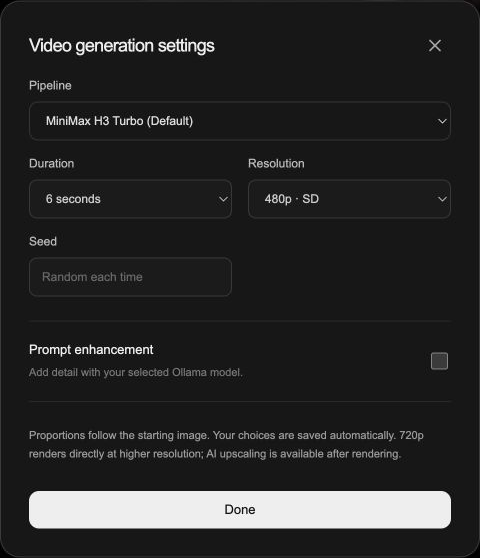
Duration and resolution apply to the next render. A matching seed alone does not reproduce a video: the starting frame, final prompt and pipeline settings must also match.
| Action | Motion direction |
|---|---|
| Generate video, with text | Your text, combined with the actual image-generation prompt |
| Generate video, empty | Disabled on the asset page; type a custom prompt or use Generate with recipe |
| Generate video on an image card | Immediately queues a video using your default recipe; stays on the current page |
| Generate with recipe → A saved recipe | Immediately queues a video using the image prompt and that recipe; preserves your custom text draft |
For uploaded images without a saved description, the first frame still conditions the video, but the text enhancer has no visual understanding of it. Give useful motion directions instead of assuming Ollama can identify what is in the upload.
Hover over an image card (or focus its controls with the keyboard) to use Generate video. After queuing, the button becomes View progress. Click the image itself to open the asset page and customize motion or settings before generating.
How the prompt is built
The actual image prompt is preserved as first-frame context. Frok appends your custom direction or the selected recipe. On an image asset, the video prompt starts blank and is reserved for your custom direction. Use Generate with recipe for a quick video. Set the image-card quick action's recipe with Make default in Settings → Recipes. Normal starts as the default and is fully editable. With enhancement enabled, Ollama can add compatible detail to the direction while retaining the original text. Queued jobs keep a snapshot of the recipe and pipeline.
Generation details follows this order:
- Original image prompt, when image enhancement changed it.
- Image prompt: the actual prompt used for the image.
- Raw video prompt, when motion enhancement changed it.
- Video prompt with its style label: what the runner received.
Start with text
On Create, select Video and write the scene and action. The resulting video is saved automatically. The video itself is the root asset; no starting image is extracted. Its asset page shows the saved prompt and Redo. Redo creates another take in the same family using that prompt. To use a different text-to-video prompt, start a new creation on Create.
Use references
Select Reference video, add the reference images and choose a reference-capable pipeline. Images remain local previews until you choose Generate. Switching a staged starting image to Reference video keeps it attached. The pipeline's declared reference limit controls how many inputs are allowed. Describe what should happen and how the references relate to it.
The generated video is the root asset. Uploaded references stay attached to it and do not appear as standalone cards in History or Favorites. Its asset page shows small previews of the saved reference images; click one to download it. Use Redo to repeat a take, or edit the prompt and choose Generate video. These actions keep the original reference images in their original order. To use different reference images, start a new creation.
Reference generation is a separate capability with its own model pack. A ready ordinary MiniMax video workflow does not mean the reference model is ready. Check Settings → Generation → Reference videos and inspect the specific preparation job if files are missing.
Refine a take
Open the resulting creation and use the arrows or dots to browse its root and video takes. The address changes with the selected take. For image-based creations, the text box shows that take's saved direction. Edit it and choose Generate video, or use Redo · New seed to repeat its saved recipe and direction. Every take uses the original root image, including uploads; Frok never substitutes a previous video's first frame. A fixed seed does not by itself guarantee identical output: the prompt, root image and pipeline settings must also match.
Video hover previews in the grid are muted and return to the first frame on mouseout. Full-player mute and volume preferences are remembered. For higher resolution, follow Compare SD and HD.
Consistent asset controls
Every asset uses the same generation panel: settings at the top, the prompt in the middle, and actions in the footer. Actions that do not apply are omitted.
| Asset | Prompt | Video actions |
|---|---|---|
| Uploaded image | New video direction | Generate video |
| Generated image | Read-only image prompt; new video direction | Generate video |
| Image-based video | Editable video direction; uses the root image | Generate video, Redo · New seed, Upscale (SD only) |
| Reference video | Editable prompt; fixed references | Generate video, Redo · New seed, Upscale (SD only) |
| Text-to-video | Read-only prompt | Redo · New seed, Upscale (SD only) |